
To calculate profit per Shopify order, take the revenue you count for that order and subtract product COGS, the shipping cost you pay, payment processing fees, and any applicable Shopify third-party transaction fee. Divide the result by order revenue and multiply by 100 to get the order profit margin.
The arithmetic is short, but the inputs need care. Product cost should match the exact variant and quantity sold. Shipping should be what the store pays, not what the customer was charged. Payment processing and Shopify third-party transaction fees are separate costs, and either one can vary by payment method, plan, or region.
Use the same revenue definition every time. Shopify explains that discounts and refunds affect net sales and profit margin, so a calculation that starts from full-price sales but ignores a later refund will overstate the result. Treat the number as an operating estimate, then reconcile taxes, refunds, advertising, payroll, and other business expenses in the system you use for accounting.
Use one order-profit formula
For a useful order-level estimate, use this formula: order profit = order revenue − product COGS − shipping cost − payment processing fee − applicable Shopify transaction fee. Then calculate margin as order profit ÷ order revenue × 100.
This is more specific than gross profit. Shopify defines gross profit as net sales minus product cost. That is useful for comparing products, but it does not tell you what is left after shipping and payment fees. The order-profit formula adds those direct costs so you can judge a particular order.
- Order revenue: the sales amount you are counting after the discounts and refunds relevant to the review.
- Product COGS: unit cost for each variant multiplied by the quantity sold.
- Shipping cost: what your business pays to ship the order, not the shipping charge collected from the customer.
- Payment processing fee: the provider's percentage, flat fee, or other charge for processing the payment.
- Shopify transaction fee: a separate fee that can apply when a third-party payment provider processes the order.
Collect the inputs before doing the math
Start with the exact order and record the revenue figure, each variant, quantity, unit cost, shipping expense, payment method, and relevant fee rates. If a product has variants, use the cost for the variant that sold. Shopify's own profit reports require cost per item and warn that missing variant costs can leave sales out of profit reporting.
Check payment fees in the store's payment settings or provider statement. Do not copy a rate from a generic example. Shopify says processing rates can depend on card type and that third-party transaction fees are separate from the processing fees charged by the payment provider. A store using Shopify Payments can have a different fee situation from a store using another gateway.
Choose how you will handle taxes and keep that choice consistent. Collected sales tax might be part of the Shopify order total, but it is not automatically money the merchant keeps. An order-profit monitor can support day-to-day decisions, while accounting software or an accountant should handle tax liabilities and financial statements.
Work through a $100 order
Assume a hypothetical order contributes $100 of revenue to this calculation. The items cost $40, shipping costs the store $8, and the example payment fee is 2.9% plus $0.30. The order uses a payment method with no additional Shopify third-party transaction fee. The payment fee is $3.20, total direct costs are $51.20, and estimated order profit is $48.80.
The margin is $48.80 ÷ $100 × 100, or 48.8%. This example is a teaching calculation, not a recommended fee setting or a claim about a merchant's results. Replace every input with the store's real order and provider data.
- Revenue counted for the order: $100.00
- Product COGS: $40.00
- Shipping paid by the store: $8.00
- Payment processing: $3.20
- Additional Shopify transaction fee: $0.00
- Estimated order profit: $48.80
- Estimated order profit margin: 48.8%
Check the result before trusting it
A positive answer can still be wrong when an input is missing. Zero COGS is not evidence that inventory was free. A default shipping amount can be a reasonable estimate, but it can hide expensive destinations or oversized parcels. A refunded order also needs another look because payment and transaction fees are not always returned in the same way as customer revenue.
Compare the estimate with the order, product cost records, carrier invoice, payment-provider report, and Shopify bill. If the numbers disagree, fix the input rather than adjusting the desired margin. Keep a note of which expenses are outside the calculation so the estimate is not mistaken for accounting net income.
- Missing variant COGS makes profit look too high.
- Using shipping revenue instead of shipping expense makes the cost too low.
- Ignoring the flat part of a payment fee matters most on smaller orders.
- Treating processing and Shopify transaction fees as the same charge can omit a cost or count it twice.
- Ignoring discounts, partial refunds, or full refunds can overstate order revenue.
Make the calculation repeatable
Use one written definition for revenue and direct costs, then apply it to every order. Review the exceptions instead of recomputing everything by hand: missing COGS, unusually high shipping, refunds, pending payments, and orders below the store's chosen profit threshold.
Review the estimate over time as fee rates, product costs, and shipping prices change. Static inputs go stale. A short monthly check of the settings is more useful than a precise-looking dashboard built on old costs.
Practical checklist
- Choose the order revenue figure and apply the same definition to every order.
- Enter COGS for the exact product variants and quantities sold.
- Use the shipping expense paid by the store, not only the amount charged to the customer.
- Verify the payment provider's percentage and flat fee for the order.
- Add a Shopify third-party transaction fee only when it applies.
- Recheck discounts, refunds, pending payments, and taxes before acting on the margin.
- Document advertising, overhead, payroll, and other costs that are outside the order estimate.
Where Profit Guard fits
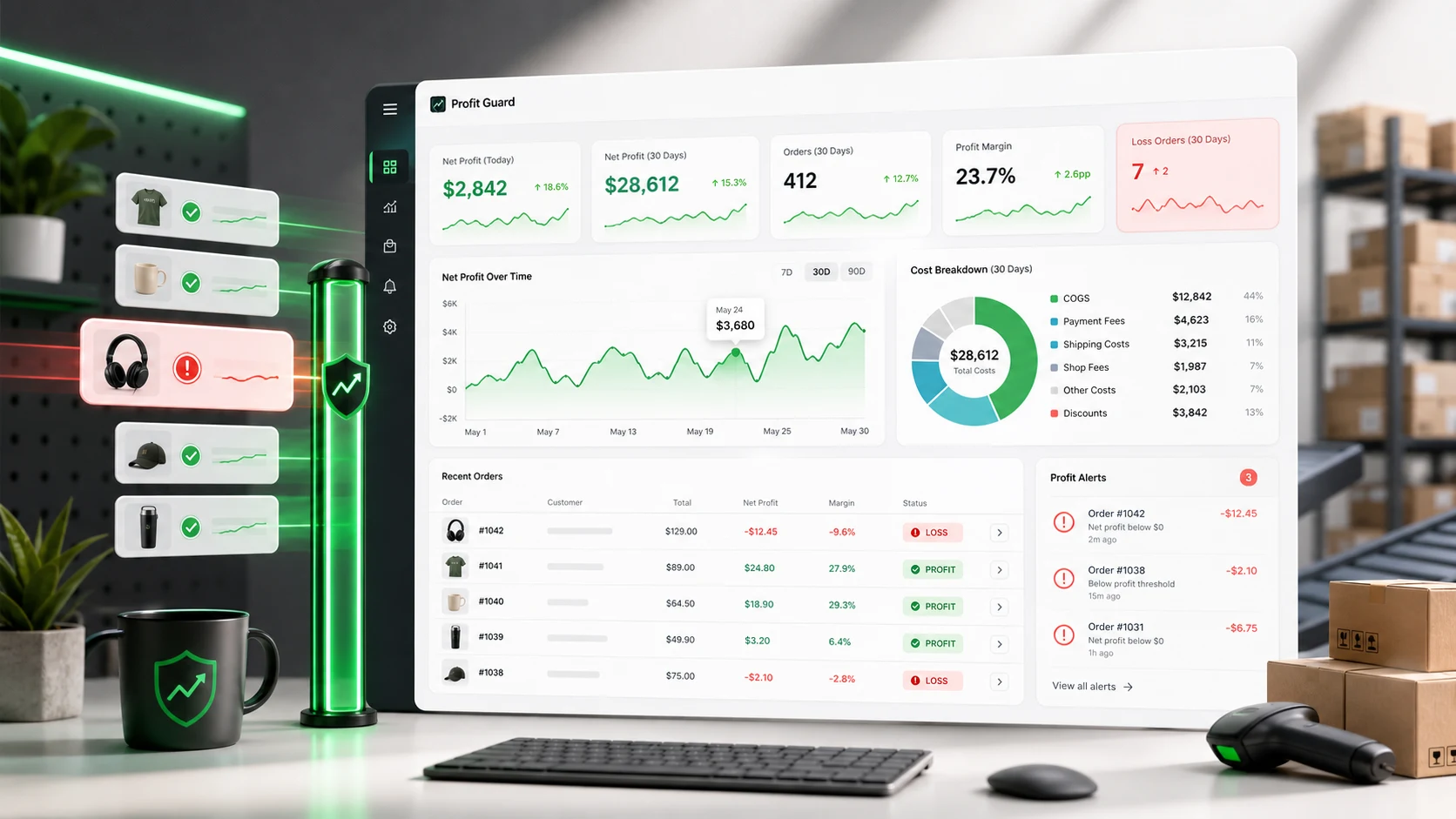
Profit Guard is a Shopify app for repeatable order-level profit estimates. Merchants can enter product or variant COGS, set a default shipping cost per order, configure a payment percentage plus flat fee, and enter an applicable Shopify transaction percentage. Profit Guard uses those inputs with Shopify order data to calculate profit and margin, classify the order, and create an alert when it falls below the configured threshold.
The app also records payment and fulfillment status. Pending orders are labeled as estimates, and refunded orders are marked for review while the original calculated values remain visible. This makes exceptions easier to find, but it does not replace reconciliation against payout, carrier, tax, or accounting records.
What Profit Guard does not do
- Profit Guard does not calculate accounting-grade net income or a complete profit and loss statement.
- Shipping uses the merchant's configured default cost per order; it does not automatically import the actual carrier charge for each shipment.
- The calculation does not automatically include advertising spend, payroll, overhead, duties, income tax, or other operating expenses.
- Missing product or variant COGS is treated as zero, so incomplete cost data can overstate estimated profit.
- Refunded and pending orders need review because status changes do not turn the saved estimate into a payout reconciliation.
- Profit alerts do not block checkout, stop fulfillment, change prices, or send email automatically.
Frequently asked questions
What is the formula for profit on one Shopify order?
Use order profit = order revenue − product COGS − shipping cost − payment processing fee − applicable Shopify transaction fee. Then divide profit by the order revenue and multiply by 100 for the margin. Keep taxes, refunds, and any excluded operating expenses documented so the estimate is not confused with accounting net income.
Are Shopify transaction fees the same as payment processing fees?
No. The payment provider charges processing fees for handling a transaction. Shopify can also charge a third-party transaction fee in situations where an external payment provider is used. Shopify says these transaction fees are in addition to the provider's processing fee, so check both before calculating the order.
What happens when a Shopify product has no COGS?
The profit estimate becomes unreliable because the product cost is missing. Profit Guard treats missing product or variant COGS as zero instead of failing the order calculation, which can overstate profit. Add the cost for every sold variant and recalculate before using the margin to make a decision.
Should sales tax count as Shopify order profit?
Do not assume collected sales tax is profit. Decide how your operating view treats tax, apply that definition consistently, and reconcile the liability in your accounting process. Profit Guard starts from Shopify's order total, so merchants who need tax-exclusive or accounting-grade profit should use their accounting records for the final figure.
Sources
- Profit reports — Shopify Help Center
- Third-party transaction fees on Shopify bills — Shopify Help Center
- Getting paid and payment provider fees — Shopify Help Center
- Refunding orders and fee considerations — Shopify Help Center
Related Profit Guard pages
Check the next order with real inputs
If product COGS and fee settings are ready, Profit Guard can apply the same order-profit estimate across tracked Shopify orders and flag the ones that need review.
View Profit Guard on Shopify